Saturday, 5 January 2019

How to Hide Whats Profile Picture from Specific Contact


Facebook-Owned instant messaging platform WhatsApp is one of the most used instant messaging app.It's used by million of users around all over the world.In the last couple of months, we have seen several new feature added to the app such as two step verification, hiding status, hiding profile picture and more.
But there's one things that's missing that WhatsApp does not have direct option that gives the user customize profile picture privacy setting for specific contacts.Having said that sometimes we just want to hide our profile picture or status from only one contact or a number of people without completely blocking them.


Let's know how to hide profile picture from specific contact.

Pre-Requisite

Download and install the latest version(2.18) of WhatsApp  from your respective app store.

Working Internet Connection.


Steps 1:
  1. Open Contact App from Your Smart phone and search the contact you want to hide
  2.  Now Delete the Contact.
Step 2: 
  1. Open WhatsApp on your smartphone 
  2. Tap on three-dot from the top right corner
  3. Select 'Setting' and goto 'Account' option
  4. Now Click on 'Privacy'
  5. Tap on the option 'Profile Photo' and select the option 'My Contact'


Repeat the step1 and step2 to hide the other contacts.

Friday, 4 January 2019

Google Assistant (Google Home)

Google is one of the most popular technology company headquarter in Mountain View, California United State of America.Its provide internet services and product which include online advertising technologies, search engine, cloud computing, software and hardware.

Google Home

Google home is a smart speaker developed by Google. The first device is announced in May 2016 and release in the United States in November 2016, with subsequent release globally throughout 2017 and 2018.
It's great at answering questions, setting timers and playing music, but it's also really useful for  controlling your smart home devices, such as locks, light and more.


Google Home speakers enable users to speak voice commands to interact with services through Google's personal assistant software called Google Assistant. A large number of services, both in-house and third-party, are integrated, allowing users to listen to music, control playback of videos or photos, or receive news updates entirely by voice. Google Home devices also have integrated support for home automation, letting users control smart home appliances with their voice. Multiple Google Home devices can be placed in different rooms in a home for synchronized playback of music. An update in April 2017 brought multi-user support, allowing the device to distinguish between up to six people by voice. In May 2017, Google announced multiple updates to Google Home's functionality, including: free hands-free phone calling in the United States and Canada; proactive updates ahead of scheduled events; visual responses on mobile devices or Chromecast-enabled televisions; Bluetooth audio streaming; and the ability to add reminders and calendar appointments.

Manage Your Day

Get personalized help with your schedule, reminders, news and much more, whenever Google Home recognizes your voice.

                  "Hey Google, what is traffic like on my way to work? " 

    "Hey Google, When's my first event tomorrow?"

Entertainment Hands-Free

Google Home works with Chromecast, so you can stream shows, movies and music on your TV or speakers.


                                      "Hey Google, Play the Mission Impossible on Netflix"

        "Hey Google,Play the Yoga Video on my TV"


Monday, 24 December 2018

How to Add pickup Note for Uber Drivers

Uber is a peer-to-peer ridesharing, taxi cab, food delivery, bicycle sharing and transportation network company headquarter in San Fransisco, California.Founded in March 2009.Uber Platform can be access by website or mobile app like android or IOS.
Recently In Mobile app a new update comes from which help to Uber driver. this is known as "Add Pickup".  This new feature allows users to leave an extra note for the Uber Driver that can provide some extra help to Uber partner driver to find and reach your location quickly. This feature comes in handy especially while booking made in a relatively crowded situations or some society which have many gates.
 Following instruction would follow to use this feature.


PreRequirement:-

1. Download and install updated Uber App form App store.

2. Internet Connectivity.

Steps to follow during leaving pickup note.


Step1:- Open Uber App on Your smartphone.


Step2:- Select the drop location as per your need.


Step3:- Choose the cab you want to book.


Step4:- Make the booking.


Step5:- Once done, Swipe up the slider that contains all details.


Step6:- Now look for the option "Any pickup notes?".


Step7:- Tap on it and start typing message and send.


Saturday, 22 December 2018

How to delete apps on Android

Here’s how you can remove an app from your Android smartphone.


Step1:- Open Google Play. 
Step2:- Press the hamburger menu icon on the top left corner. Go to My apps & games. 
Step3:- Go to the tab labelled Installed. 
Step4:- Here you will see the list of all apps installed on your device. Tap the name of the app you want to uninstall. 
Step5:- Tap Uninstall on the resulting screen.

If you know the name of the app you want to uninstall, you can do that by following these steps:

Step1:- Open Google Play.
Step2:- Type the name of any app you’ve installed on your phone in the search bar at the top.
Step3:- Select that app from the list of results.
Step4:- Tap Uninstall on the Google Play.

You can also uninstall apps via these steps on Android:

Step1:- Open the app drawer.
Step2:- Tap and hold the icon of the app you want to delete and drag it to the top of the screen where you see Uninstall.
Step3:- Alternatively, you can go to Settings -> Apps.
Step4:- Now select the app you want to delete. Tap Uninstall.

This will remove the app from your Android phone. Note that these steps may vary slightly if your phone doesn’t have stock Android.

Thursday, 20 December 2018

How to send Message Securily

We have seen that in many cases when we are sending message, we want that no one can see our message only receiver able to see those message for sending the message we can use cryptography and steganography is one of the technique of cryptography..
 So today we will learn about steganography and how the message will be send using this technique.

Steganography

Steganography is a technique of hiding data within data. Encryption can also be used in steganography to protect data to access the unauthorized user.
      Steganography can apply with images,audio,video files.Typically, however, steganography is written in characters including hash marking, but its usage within images is also common. At any rate, steganography protects from pirating copyrighted materials as well as aiding in unauthorized viewing.

Let's see how steganography will be apply with image.

Step1:- Open command prompt in your PC/Laptop.

Step2:- type

   echo  message >> image file name

ex.   echo " hello juliya how are you?" >> xyz.jpg

Now your message have written in the image and image is look like a simple image you can see your written message thru right click of image and then go edit with any text editor then in the last you will see that your message is write. 

Monday, 13 August 2018

How to take Screenshot in window 10

In some situation while working in our computer we need to screenshot  of the window.In window 10
Microsoft gives better facility to take screenshot of entire window or some part of window.

1.How to take screenshot of entire screen in window 10


  • Press Windows Key+Print screen
  • Go to picture library of your computer and see the screenshot folder.Here you will find the screenshot saved.
Note:-You can also just press Print Screen and open MS Paint. Now press ctrl + v to paste the screenshot in Paint. You can now save it anywhere you like.

2.How to take screenshot of current window only


If you want to take screenshot of an app that you are open follow these steps
  • Click on the app you want to take a screenshot. Make sure it’s in the foreground and not behind other open apps.
  • Press alt + Print Screen.
  • Open MS Paint.
  • Press Ctrl+V
  • This will paste the screenshot of the open window in Paint. You can save the screenshot anywhere you like.


Enjoy...

Thursday, 9 August 2018

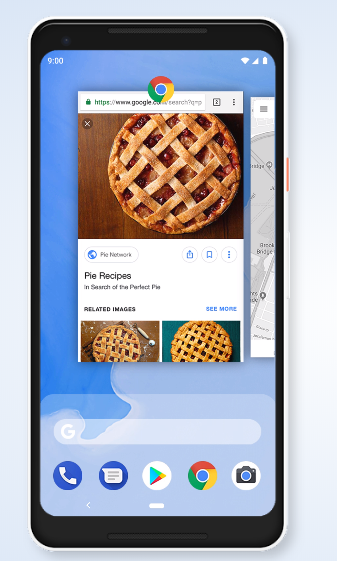
Google Release Android 9 Pie fully based on AI(Artificial Intelligence)

Android 9 Pie harnesses the power of Artificial Intelligence to give you more from your phone.Now it is very smarter,faster and adapts as you use it.

Tailored to you


Android 9 adapts to you and how you use your phone, learning your preferences as you go. Your experience gets better and better over time, and it keeps things running smoother, longer.

Adaptive Battery


Go more with a single charge. Adaptive Battery learns how you like to use your phone, so the apps and services you don’t use as much aren’t a battery drain.


Adaptive Brightness


In Android 9 Pie You don't worry to change your brightness.It automatically adjust brightness based on situation.If your phone is in darkness its bright will be high and vice versa.


Getting around just got easier


Switch between apps and get to what you need more naturally by using gestures instead of buttons.